
- AI基盤
Amazon Bedrock Data Automationによるドキュメント処理の検証
はじめに
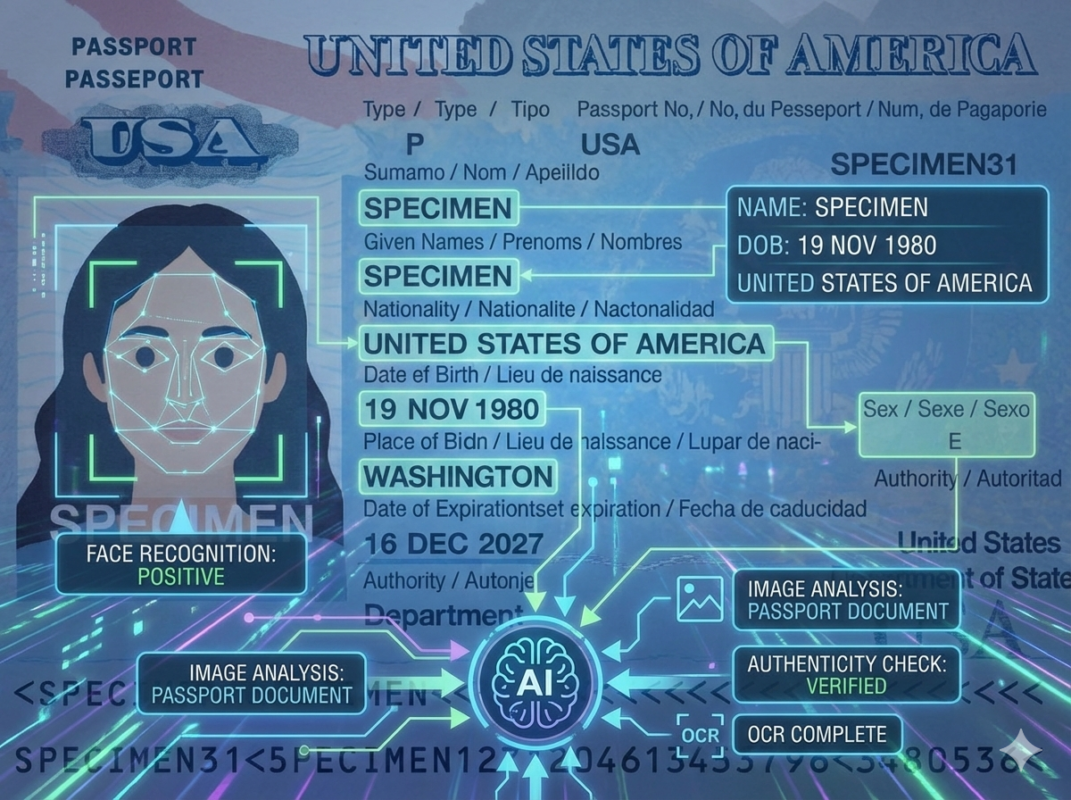
Amazon Bedrock Data Automationとは、Amazon Bedrock 上で提供されている マルチモーダル対応のデータ自動抽出サービスです。
テキストだけでなく、画像・ドキュメント・動画・音声 といった複数のデータ形式(=マルチモーダル)を入力として扱い、生成 AI を活用して、非構造化データから構造化された情報を自動的に抽出できます。
今回、Bedrock Data AutomationのAPI を Python コードから呼び出し、
ブループリントの作成からプロジェクトの作成・実行、そして実行結果を S3 に保存するまでの一連の流れを試してみました。
本記事では、実際の実装を通して、Bedrock Data Automation をどのように使えばよいのかを順を追って紹介していきます。
- ブループリント(Blueprint)とは
- 構築したい生成 AI ワークフローの テンプレート。プロンプト構造やモデル選択、入出力仕様などをまとめて定義できる。
- プロジェクト(Project)とは
- ブループリントを元に生成される 実行単位。任意のパラメータを渡して生成を実行し、結果を取得できる。
- API で実行するメリット
- GUI では難しい一括処理、自動化など
参考にした記事:
「Simplify multimodal generative AI with Amazon Bedrock Data Automation」
構成図
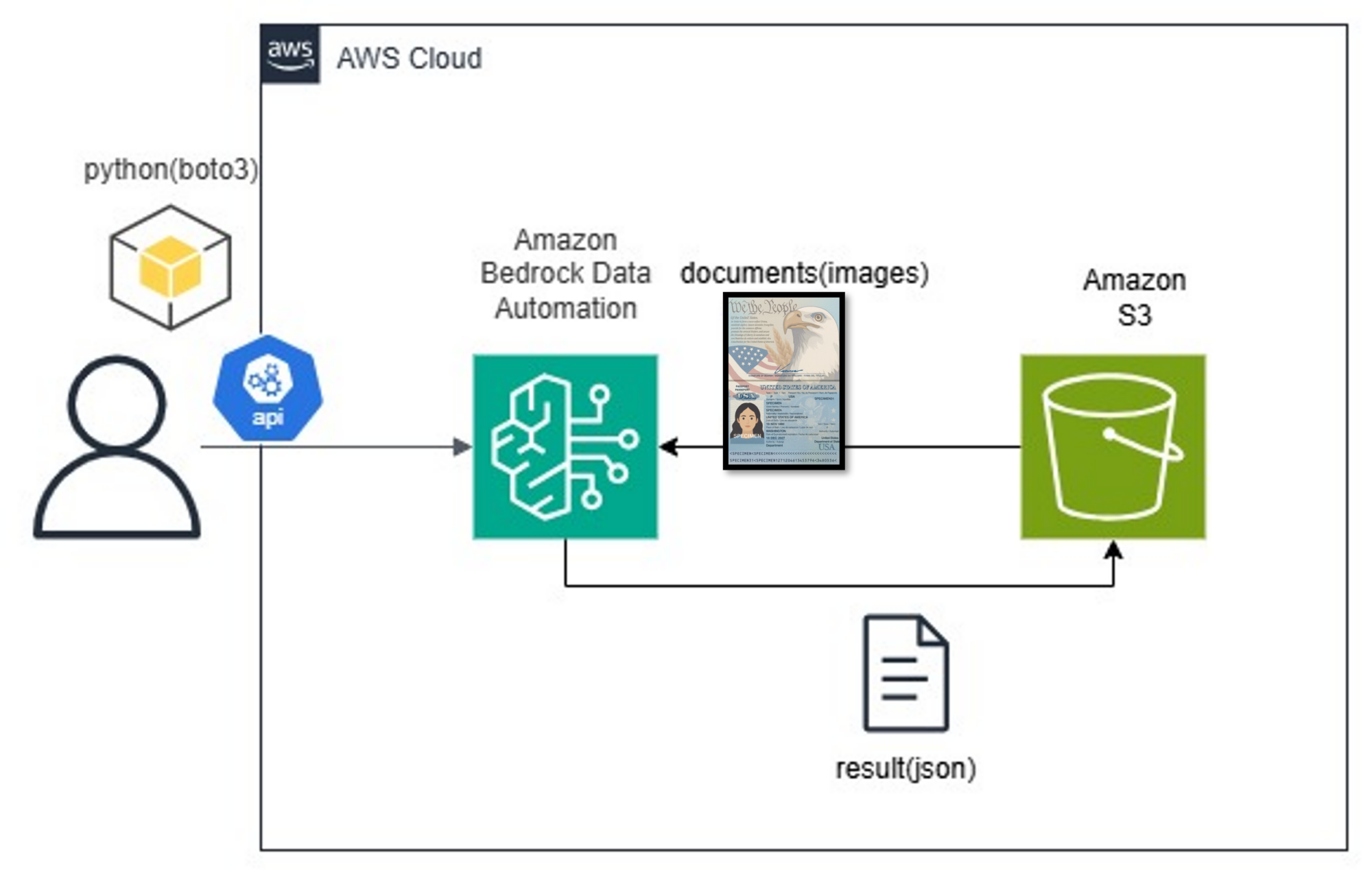
構成図は以下の通りです。
まず、Amazon S3 に保存されている画像を Python から取得し、その画像を入力として Bedrock Data Automation API を呼び出します。
API ではブループリントの作成、プロジェクトの作成および実行を行い、処理結果は再び Amazon S3 に保存される構成としています。
事前に準備したもの
本記事の内容を試すにあたり、あらかじめ以下の環境とリソースを用意しました。
- AWS CLI のセットアップ
Bedrock や S3 などの AWS サービスを操作するために、AWS CLI をインストールし、認証情報の設定を行います。 - boto3 ライブラリのインストール
Python から AWS API を呼び出すために、AWS SDK for Python(boto3)をインストールします。 - S3 バケットの作成
入力となる画像およびBedrock Data Automationの実行結果を保存するための S3 バケットを作成します。 - 取り込み用の画像ファイル
今回はサンプルとして、US パスポートの画像を用意しました。
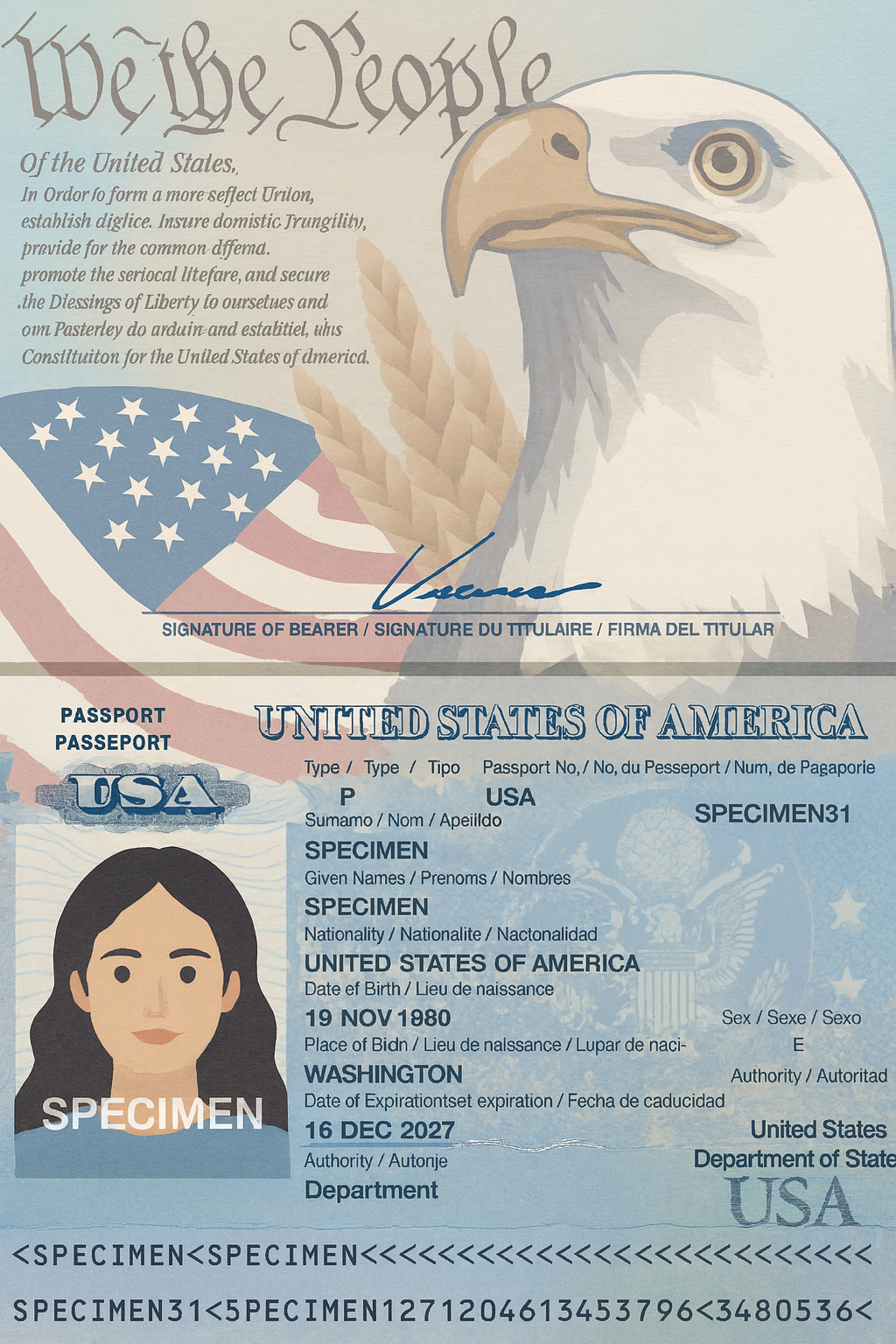
※こちらは USA パスポートのサンプルイラストです。実際にはネット上で公開されている実物のパスポート画像を用いています。
Pythonコード
以下に、今回使用した Python コードをそのまま掲載します。
import boto3
import json

# Bedrock Data Automation 用のクライアントを作成
bedrock_data_automation_client = boto3.client(
    'bedrock-data-automation',
    region_name='us-east-1'
)

# 「ランタイム API」用クライアント
bedrock_data_automation_runtime_client = boto3.client(
    'bedrock-data-automation-runtime',
    region_name='us-east-1'
)

blueprintName='passport-blueprint'
projectName='TEST_PROJECT'

# ブループリント用の JSON Schema 定義
schema = {
    '$schema': 'http://json-schema.org/draft-07/schema#',
    "class": "Passport",
    "description": "Blueprint for extracting passport information",
    "properties": {
        "passport_type": {
            "type": "string",
            "inferenceType": "explicit",
            "instruction": "Extract the passport type letter shown after the word 'Type' or before 'Code'. Example: P"
        },
        "place_of_birth": {
            "type": "string",
            "inferenceType": "explicit",
            "instruction": "Extract the text that appears after 'Place of birth' or 'Lieu de naissance'. Example: VIETNAM"
        },
        "expiration_date": {
            "type": "string",
            "inferenceType": "inferred",
            "instruction": "Extract the expiration date that appears after 'Date of expiration' or 'Fecha de caducidad', formatted as YYYY-MM-DD."
        }
    }
}

# ブループリントの作成
response = bedrock_data_automation_client.create_blueprint(
    blueprintName=blueprintName,
    type='IMAGE',
    blueprintStage='LIVE',
    schema=json.dumps(schema)
)

# blueprintArn を取得
new_blueprint_arn = response['blueprint']['blueprintArn']

# Data Automation プロジェクトの作成
bda_bedrock_automation_create_project_response = bedrock_data_automation_client.create_data_automation_project(
    projectName=projectName,
    projectDescription='test BDA project',
    projectStage='LIVE',
    standardOutputConfiguration={
        'document': {
            'outputFormat': {
                'textFormat': {
                    'types': ['PLAIN_TEXT']
                },
                'additionalFileFormat': {
                    'state': 'ENABLED',
                }
            }
        },
    },
    customOutputConfiguration={
        'blueprints': [
          {
              'blueprintArn': new_blueprint_arn
          },
        #   {
        #       'blueprintArn': 'arn:aws:bedrock:us-east-1:aws:blueprint/bedrock-data-automation-public-w2-form'
        #   },
        #   {
        #       'blueprintArn': 'arn:aws:bedrock:us-east-1:aws:blueprint/bedrock-data-automation-public-us-passport'
        #   },
        ],
    },
    overrideConfiguration={
        'document': {
            'splitter': {
                'state': 'ENABLED'
            }
        }
    }
)

# projectArn を抽出
dataAutomationProjectArn = bda_bedrock_automation_create_project_response['projectArn']

# Data Automation の非同期実行
# S3 に格納された画像を入力として Data Automation を実行
bda_invoke_data_automation_async_response = bedrock_data_automation_runtime_client.invoke_data_automation_async(
    inputConfiguration={'s3Uri': 's3://bedrock-input-bucket-202506/usa-passport-kris.jpg'},
    outputConfiguration={'s3Uri': 's3://bedrock-input-bucket-202506/result/'},
    dataAutomationProfileArn='arn:aws:bedrock:us-east-1:901235308532:data-automation-profile/us.data-automation-v1',
    dataAutomationConfiguration={
        'dataAutomationProjectArn': dataAutomationProjectArn,
        'stage': 'LIVE'
    }
)

# invocationArn を抽出
invocationArn = bda_invoke_data_automation_async_response['invocationArn']

# 非同期実行の進捗や完了状態を確認
bda_invoke_data_automation_async_response = bedrock_data_automation_runtime_client.get_data_automation_status(
    invocationArn=invocationArn
)
ブループリントについて
ブループリントには、以下の情報を抽出するように設定しました。
- 出身地(place_of_birth)
「Place of birth」や「Lieu de naissance」に続くテキストを抽出します。 - パスポートタイプ(passport_type)
パスポートに記載されている「Type」や「Code」の近くに表示される文字(例:P)を抽出します。 - パスポートの有効期限(expiration_date)
「Date of expiration」や「Fecha de caducidad」に続く日付を抽出し、YYYY-MM-DD形式に正規化します。
引っかかったポイント・注意点
実装を進める中で、いくつか注意が必要なポイントがありました。
- blueprintStage / projectStage は
DEVELOPMENTでは使用できない
ブループリントおよびプロジェクトのstageをDEVELOPMENTに設定した場合、
Data Automation の実行時に使用することができません。
実際に実行する場合は、LIVEを指定する必要がある点に注意が必要です。 - dataAutomationProfileArn の指定が必須
Data Automation を実行する際には、dataAutomationProfileArnの指定が必要になります。
利用可能なプロファイルや設定内容については、以下の公式ドキュメントを参照してください。
https://docs.aws.amazon.com/bedrock/latest/userguide/bda-cris.html
参考にした公式ドキュメント
Amazon Bedrock Data Automation のコードを作成するにあたり、以下の公式ドキュメントを参考にしました。
仕様の確認や API の詳細を把握する際に、特に役立ったページです。
- Amazon Bedrock Data Automation ユーザーガイド
https://docs.aws.amazon.com/bedrock/latest/userguide/bda.html - Amazon Bedrock API Reference
https://docs.aws.amazon.com/bedrock/latest/APIReference/welcome.html - boto3 Bedrock Data Automation API リファレンス
https://boto3.amazonaws.com/v1/documentation/api/latest/reference/services/bedrock-data-automation.html
実行結果の確認
コードを実行すると、指定していた S3 バケット配下に、ジョブごとのフォルダと結果ファイルが作成されます。
主に確認するのは、以下のファイルとフォルダです。
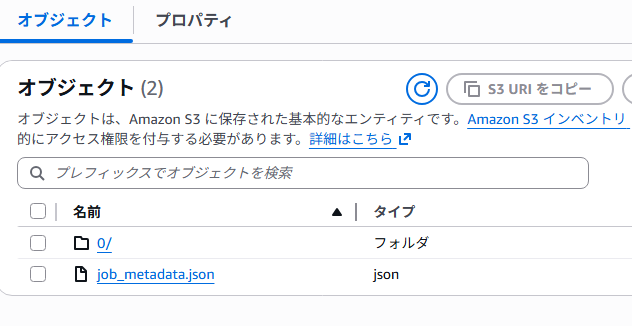
job_metadata.json
job_metadata.json には、Bedrock Data Automationの実行結果(成功・失敗)や、
抽出結果が保存されている S3 のパス情報が記載されています。
{
  "job_id": "2acb6302-ed85-4ca1-8e37-1abe4f0a9a5e",
  "job_status": "PROCESSED",
  "semantic_modality": "IMAGE",
  "output_metadata": [
    {
      "asset_id": 0,
      "asset_input_path": {
        "s3_bucket": "bedrock-input-bucket-202506",
        "s3_key": "usa-passport-kris.jpg"
      },
      "segment_metadata": [
        {
          "standard_output_path":
            "s3://bedrock-input-bucket-202506/result17/2acb6302-ed85-4ca1-8e37-1abe4f0a9a5e/0/standard_output/0/result.json",

          "custom_output_path":
            "s3://bedrock-input-bucket-202506/result17/2acb6302-ed85-4ca1-8e37-1abe4f0a9a5e/0/custom_output/0/result.json",

          "custom_output_status": "MATCH"
        }
      ]
    }
  ]
}
このファイルでは、以下のポイントを確認します。
- job_status
PROCESSEDとなっているため、Data Automation の処理は正常に完了しています。 - standard_output_path / custom_output_path
標準出力(OCR 結果)および、ブループリントに基づく抽出結果が保存されている S3 パスが確認できます。 - custom_output_status
MATCHとなっているため、ブループリントに一致した形式で項目の抽出ができていることが分かります。
standard_output
standard_output 配下には、Data Automation による 標準 OCR の抽出結果 が保存されます。
この JSON ファイルには、以下のような情報が含まれています。
- OCR によって読み取られた全文テキスト
- 図表やレイアウトの構造情報
- 読み取ったテキストの位置情報(座標情報)
内容はかなり長くなるため、本記事では割愛しますが、
OCR の詳細な解析や後続処理を行う場合には、このデータが役立ちます。
custom_output
custom_output 配下には、ブループリントに沿って抽出された結果 が JSON 形式で保存されます。
今回の例では、以下のような内容が出力されました。
{
  "matched_blueprint": {
    "arn": "arn:aws:bedrock:us-east-1:901235308532:blueprint/3ab60d74927b",
    "version": "1",
    "name": "Passport",
    "confidence": 1.0
  },
  "inference_result": {
    "passport_type": "P",
    "place_of_birth": "CHICAGO ILLINOIS",
    "expiration_date": "2027-12-13"
  }
}
ブループリントで指定していた以下の項目が、正しく抽出されていることが確認できます。
- パスポートタイプ(passport_type)
- 出身地(place_of_birth)
- パスポートの有効期限(expiration_date)
このように、画像から構造化されたデータを JSON として取得できる点が、
Amazon Bedrock Data Automation の大きな特徴です。
おわりに
実際に Amazon Bedrock Data Automation を試してみたところ、いくつか注意点があることが分かりました。
まず、入力画像の品質 についてです。
画像の画質が十分でない場合、入力として正常に扱われず、結果の取得が安定しないケースがありました。
特にスキャン品質の低い資料や文字が不鮮明な画像については注意が必要です。
次に、instruction に指定する言語 についてです。
instruction に日本語を記述するとエラーが発生し、ワークフローが先に進まない場面がありました。
現時点では英語以外の言語サポートはまだ十分ではない印象です。
AWS の公式アナウンス(以下のリンク)でも言及されている通り、日本語を含む複数言語への対応は限定的です。
そのため日本語ドキュメントでの活用を前提とした場合、現時点での実用性はあまり高くないと感じました。
https://aws.amazon.com/jp/about-aws/whats-new/2025/08/amazon-bedrock-data-automation-five-additional-languages-documents/
全体として、英語ドキュメントを前提としたワークフローであれば十分に活用できる一方で、日本語ドキュメントの処理にはまだ課題が多いという印象です。
実案件への適用を検討する場合は、事前に追加の検証を行うことをおすすめします。